This guide is for members of an organisation whose website runs on Gather. The pictures show a demo site; your organisation's site has its own name, colours and menus, but the buttons and pages are the same.
Joining
- Click Join us (top right of the site), or go to
/join. - Fill in the form:
- About you: your name, and the other details your organisation asks for (some are optional).
- Photo for your member card: a clear, recent photo of your face. You can drag and zoom to choose the square that appears on your card. Only you and the site's administrators can see it.
- Your account: your email address and a password of at least 10 characters.
- Send me news and event updates by email: tick it if you want newsletters. You can change your mind any time.
- Agree to the terms and privacy policy.
- Click Create my account.
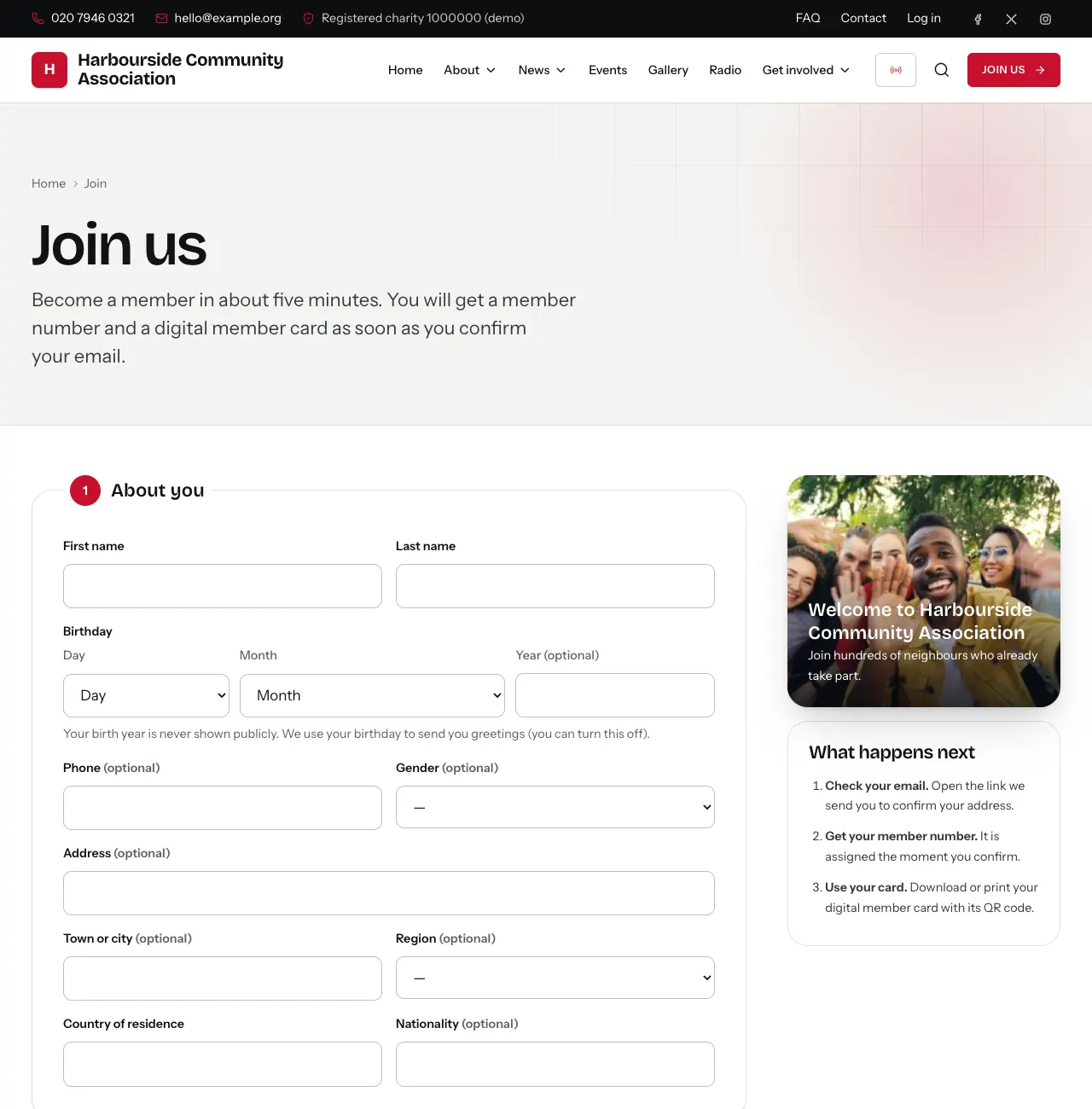
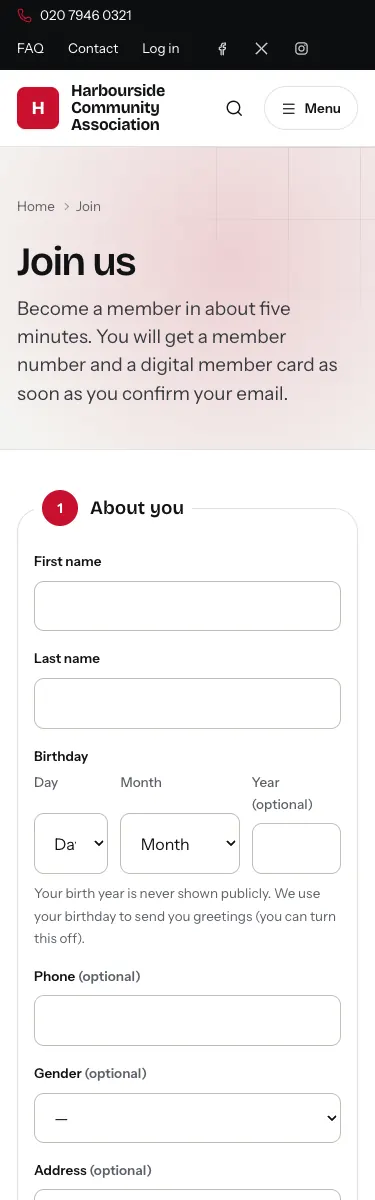
On a phone, the same form fits the screen:
If your sign-up is for a whole organisation (for example an affiliated association), use Register a group under the form instead.
Verifying your email
Gather sends an email to the address you gave. Open it and click the button, then Verify my email on the page that opens. That:
- activates your account and logs you in;
- gives you your member number (for example
HCA-26-0042); - sends you a welcome email with your number.
Nothing arrived? Check your spam folder. On your account page you can also Send a new link. Accounts that are not verified within 14 days are removed automatically, so you would need to join again.
Logging in
Click Log in at the top of the site (or go to /login), enter your email
and password, and you arrive at My account. Forgotten your password?
Click Forgotten your password? on the login page. You get an email with
a link that works for one hour.
Your dashboard (My account)
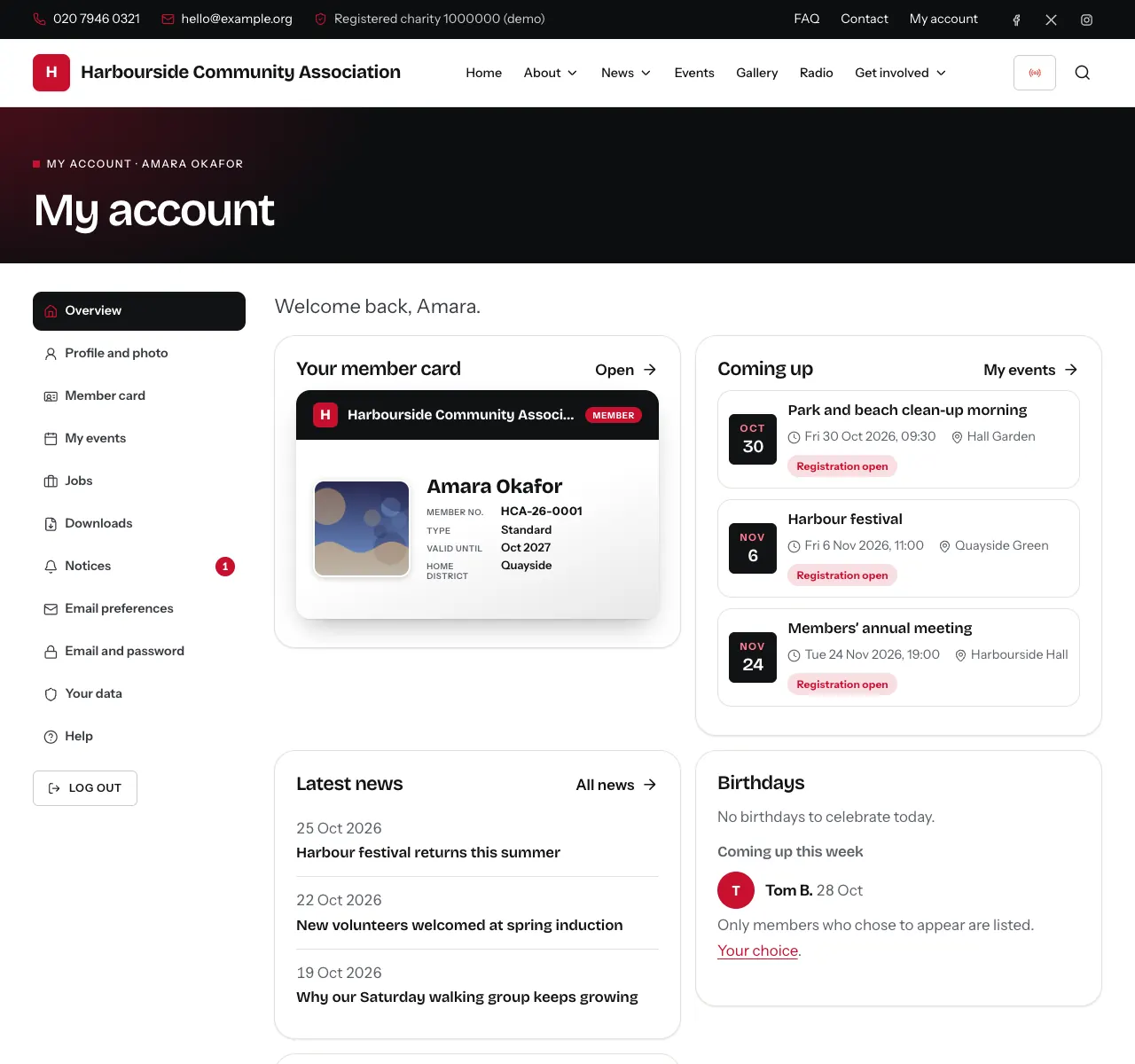
The dashboard shows:
- Your member card: a preview; click Open for the full card.
- Coming up: the events you registered for.
- Latest news from the organisation.
- Birthdays: members celebrating today and this week (only those who chose to be listed).
- Notices: announcements from the organisation. A red number shows how many you have not read yet.
- If you said no to newsletters, a card asks whether you would like them. Yes, send me updates switches them on; No thanks hides the card (it may ask again after 90 days).
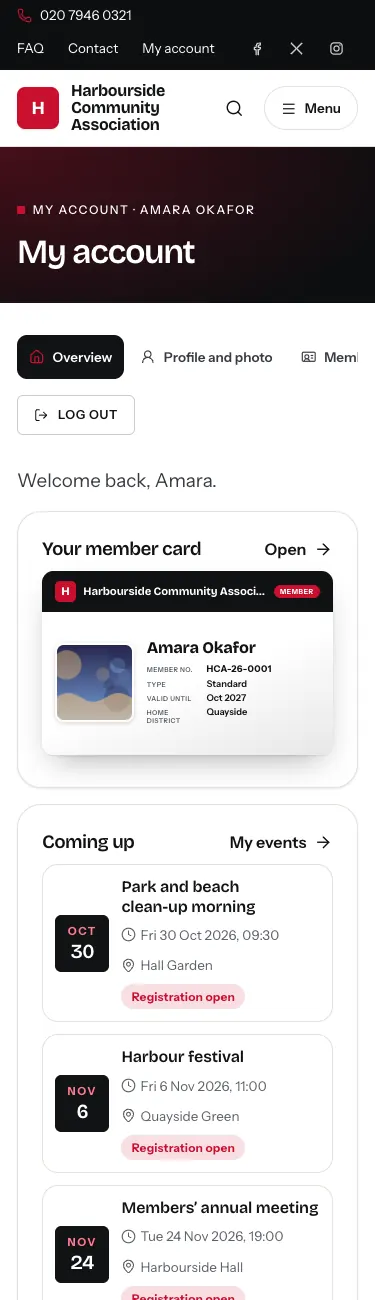
The menu on the left (on a phone, at the top) leads to every part of your account.
On a phone, the dashboard looks like this:
Your member card
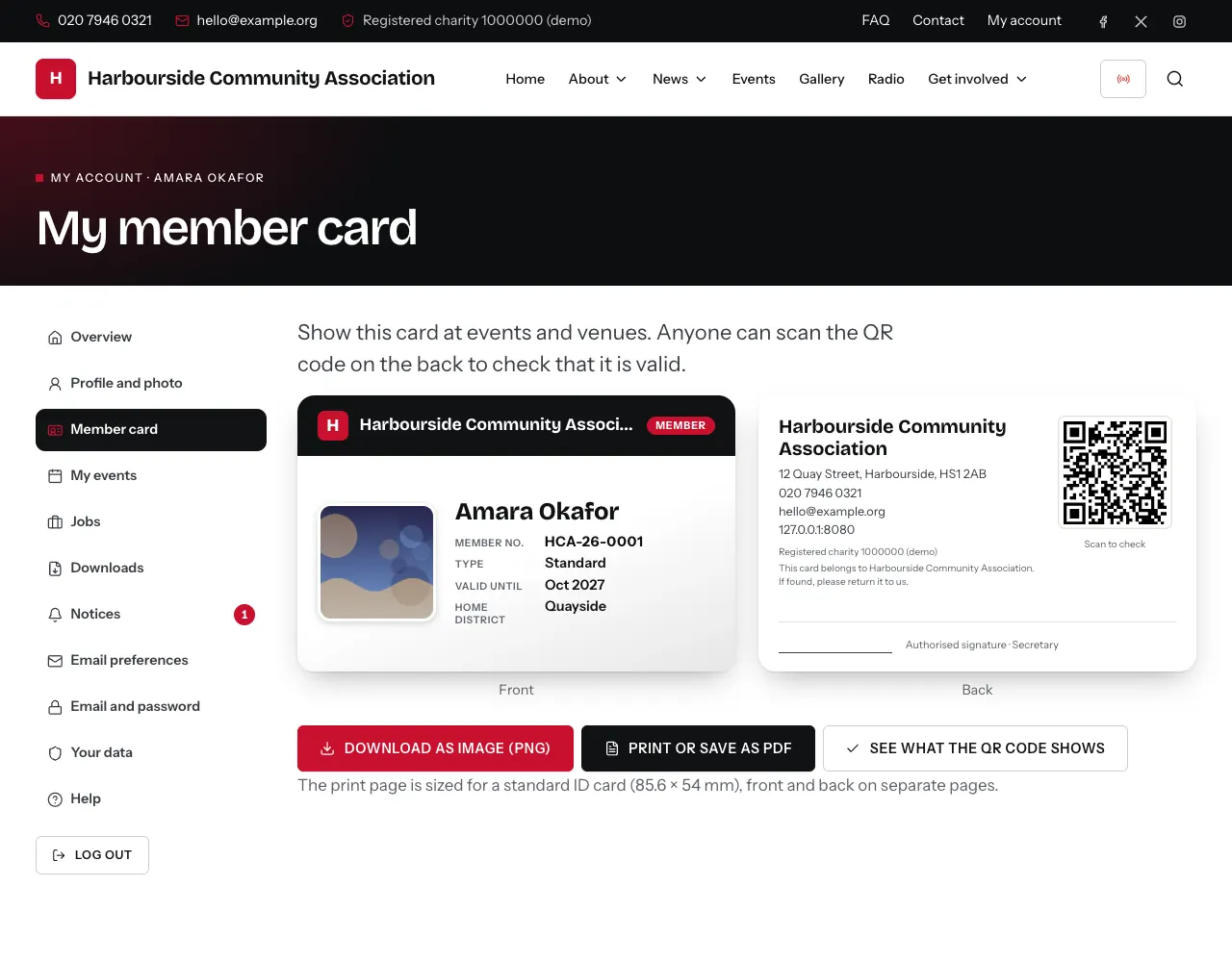
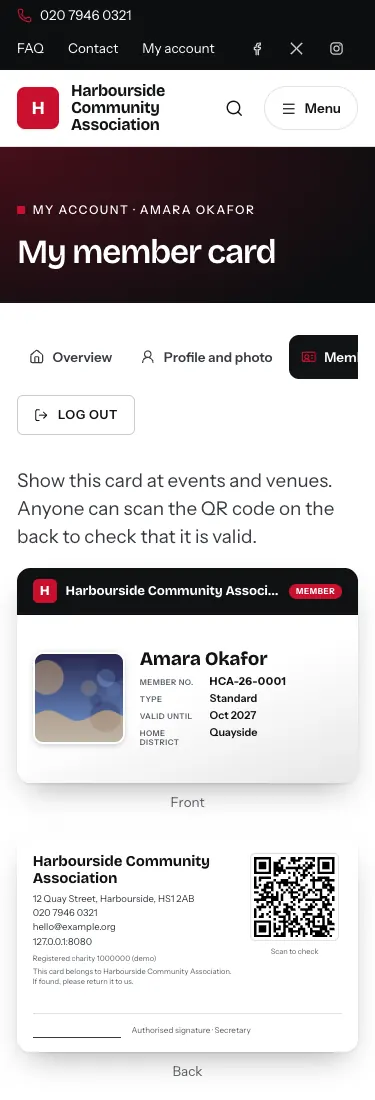
Member card shows the front and back of your digital card: the organisation's logo, your photo, name, member number, membership type and "valid until" date. The back has a QR code: anyone who scans it sees a page confirming that your card is valid, with your name and photo only.
- Download as image (PNG): save it to your phone's photos.
- Print or save as PDF: prints at the size of a standard ID card.
- See what the QR code shows: the check page that others see.
If your card has expired, the page says so. Contact the organisation to renew.
Profile and photo
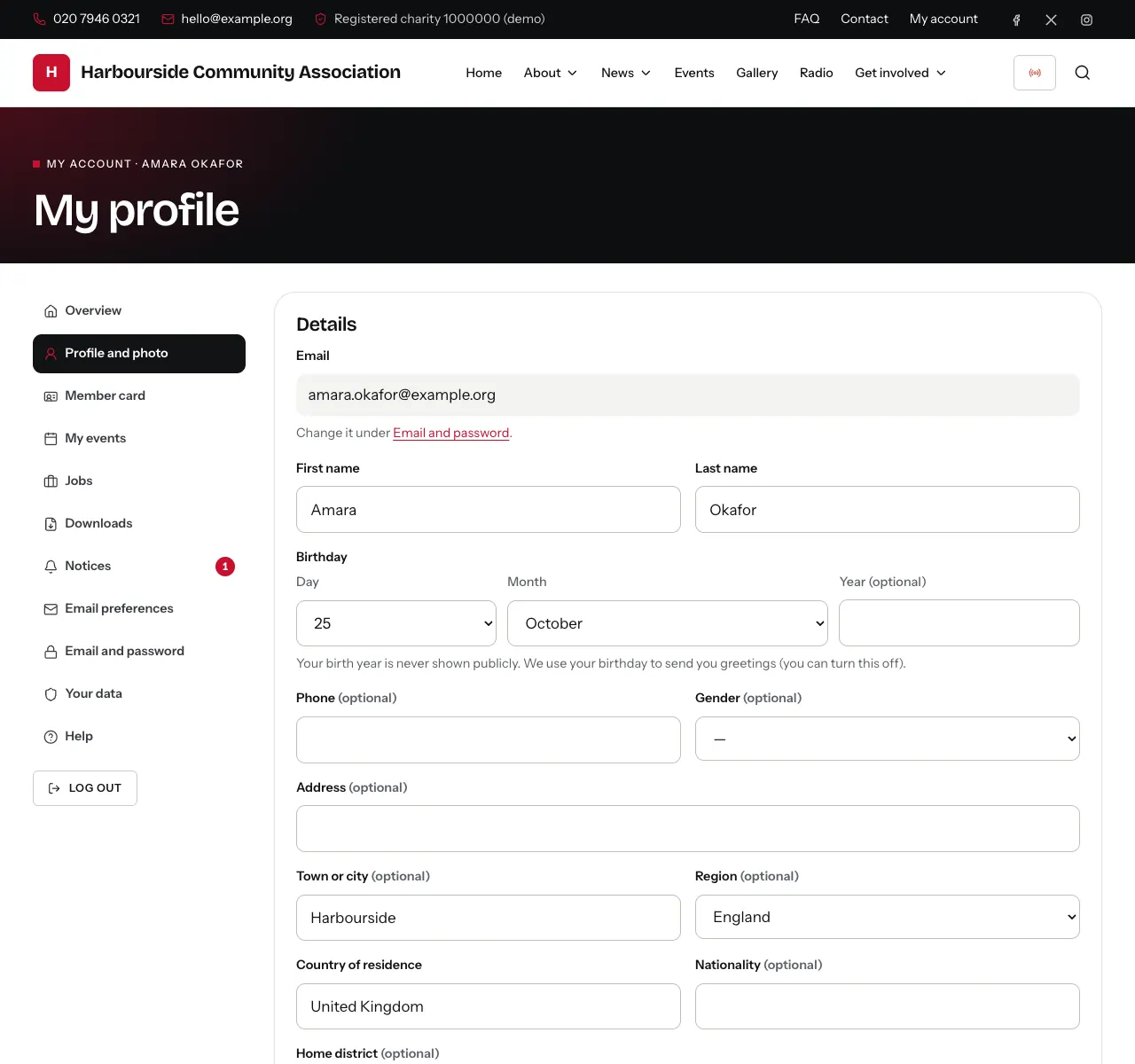
Profile and photo lets you correct your details and upload a new photo (cropped to a square). Some fields may be managed only by the organisation.
Email and password
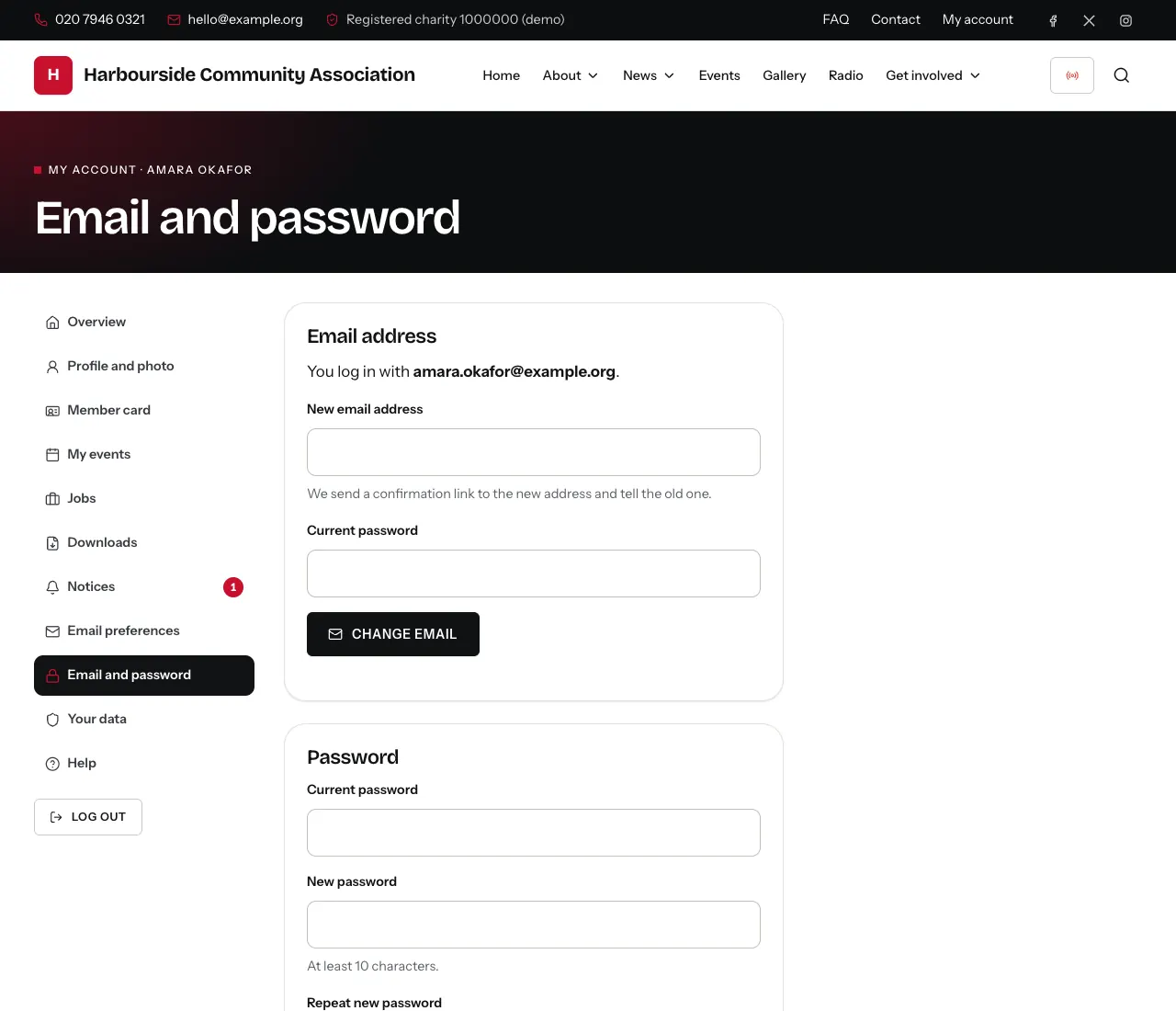
Email and password:
- Change email: type the new address and your current password. We send a link to the new address; your login stays the same until you open it. The old address gets a notice too, in case it was not you.
- Change password: your current password, then the new one twice.
Email preferences
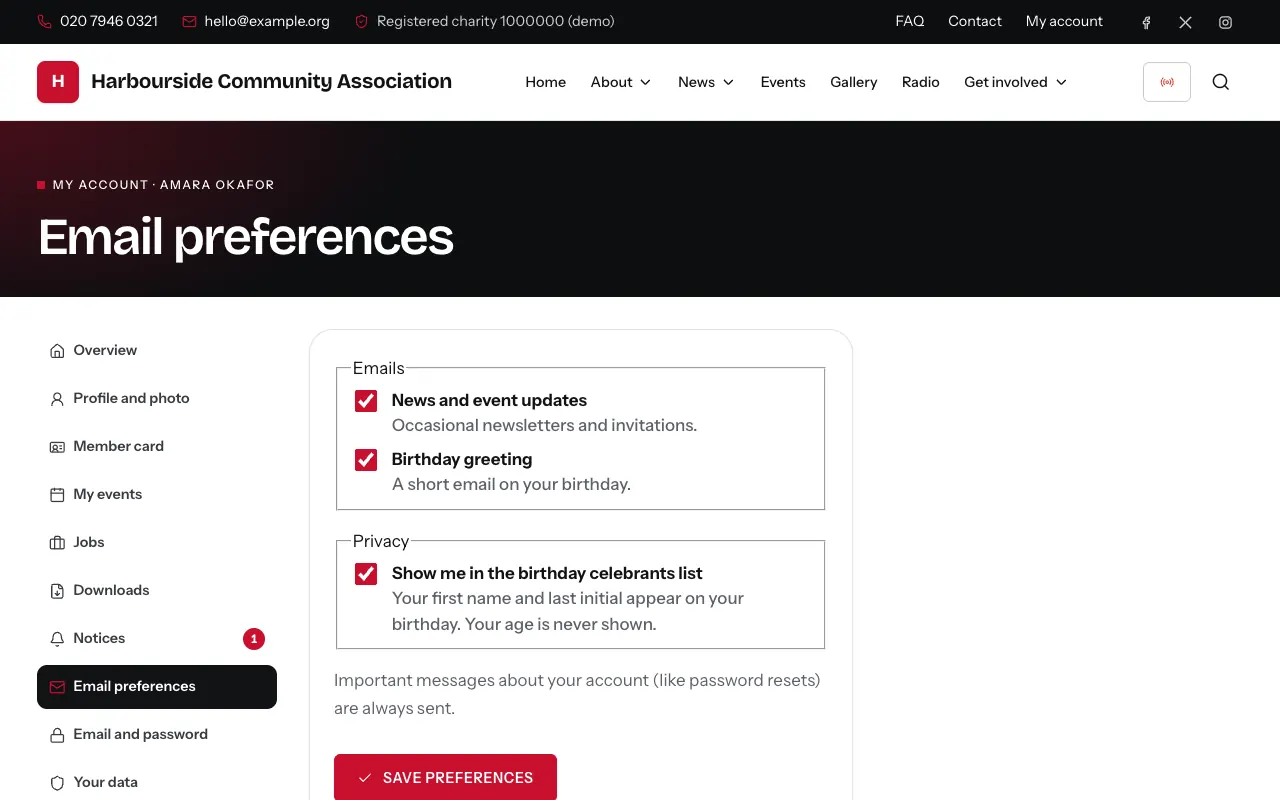
Email preferences controls what you receive:
| Setting | What it means |
|---|---|
| News and event updates | Newsletters and invitations |
| Birthday greeting | A short email on your birthday |
| Show me in the birthday celebrants list | Your first name and last initial appear on your birthday (your age is never shown) |
Important account emails (password resets, email verification, event confirmations) always arrive, whatever you choose here. Every email also has a Manage email preferences link at the bottom, and newsletters have an unsubscribe link.
Your organisation may occasionally send an essential membership notice (for example the notice of the annual general meeting) even if you switched newsletters off. Such an email says why you received it.
Events
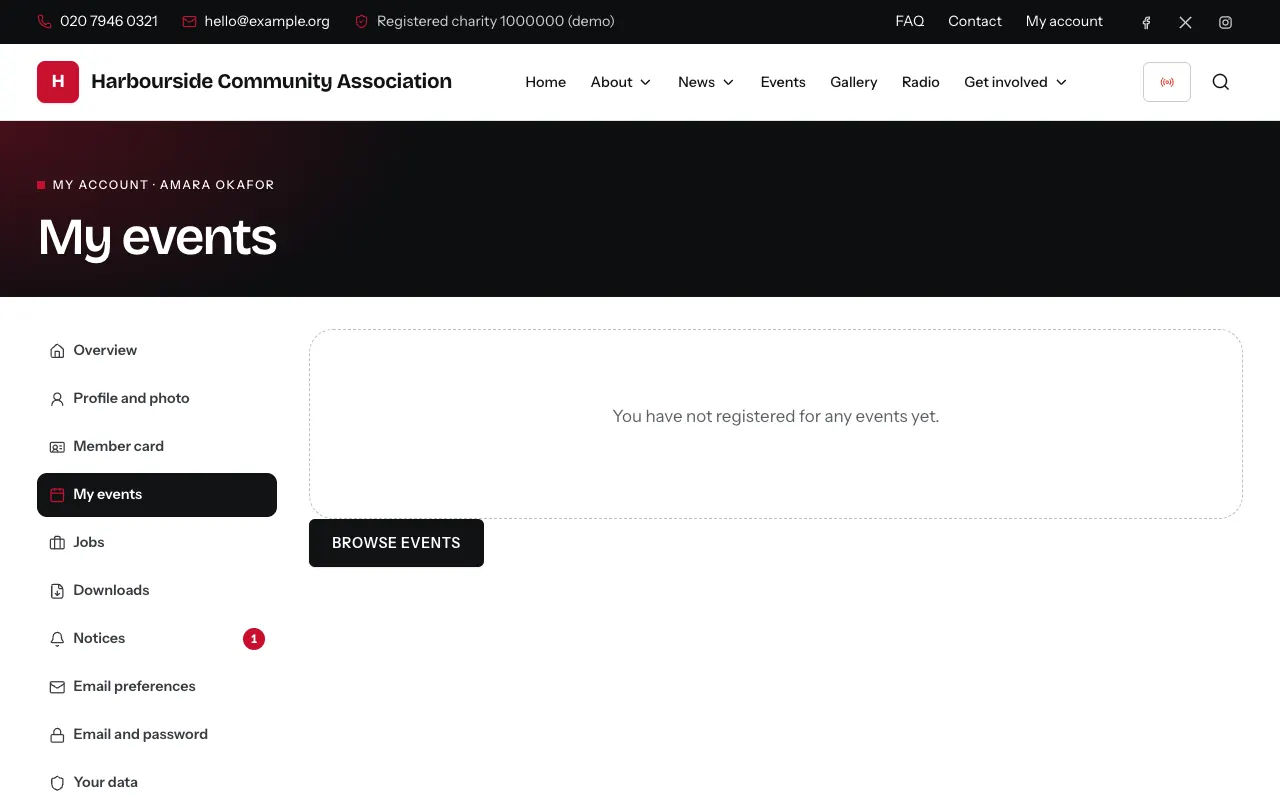
On the Events page, open an event and click Register now. Choose the ticket and number of places if the event has them, and confirm. You get a confirmation email. My events lists your registrations, and Cancel gives your place back. No payment is taken on the website.
Add to calendar on an event page puts it in your phone or computer calendar.
Notices
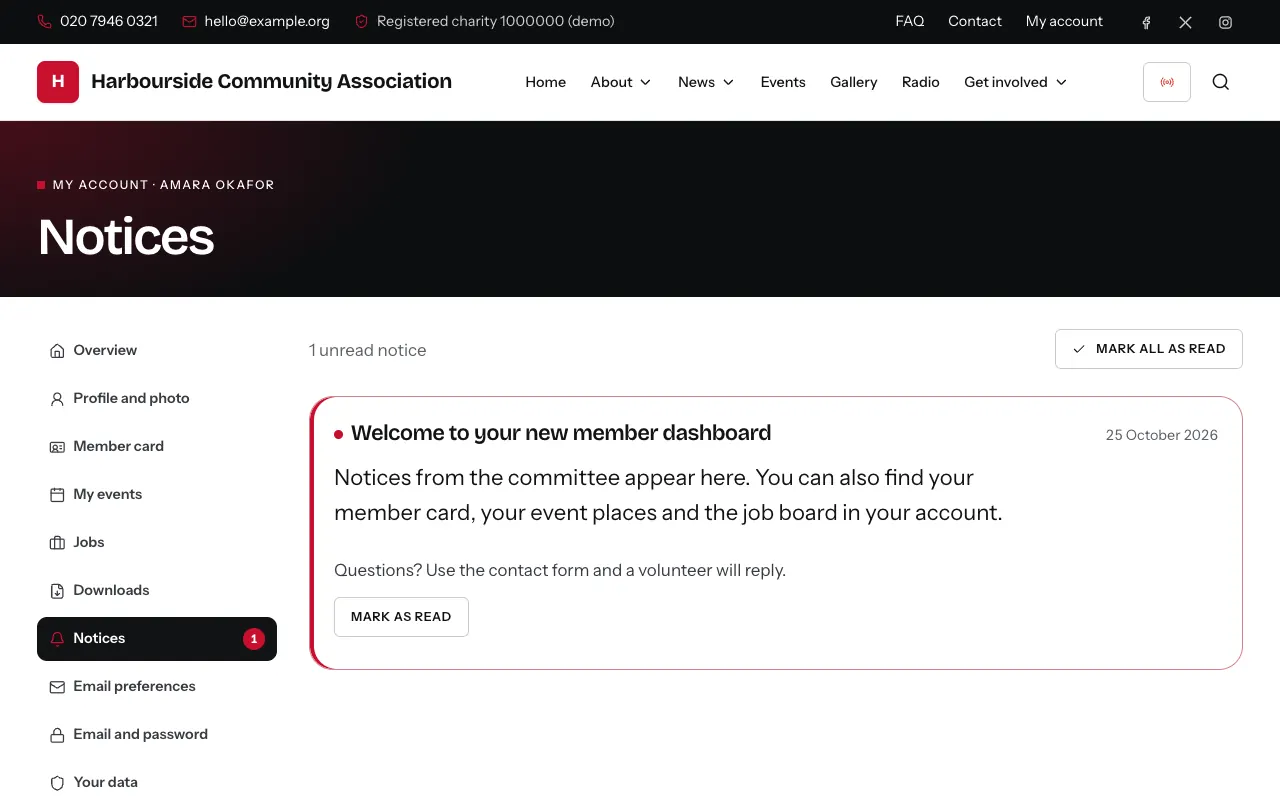
Notices lists announcements from the organisation. They are marked as read when you have seen them, or click Mark as read / Mark all as read.
Downloads
Downloads holds documents shared with members only (for example minutes or the constitution).
Jobs
The job board (/jobs) lists jobs, volunteering roles and internships
shared by members. Open one to see how to apply.
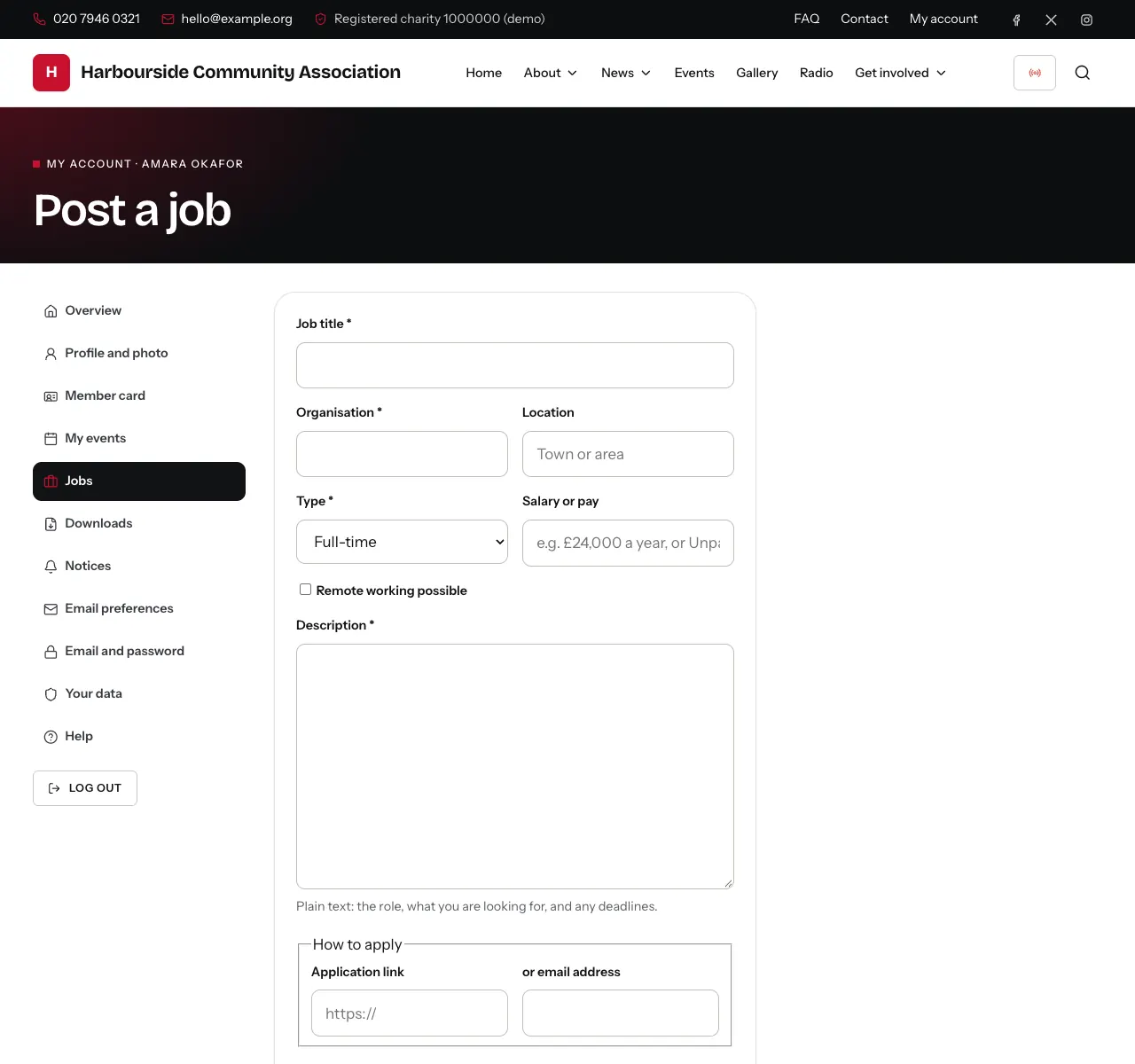
To share one yourself: Jobs in your account → Post a job. Fill in the details and how to apply. An administrator checks posts before they appear (members who have posted good jobs before may be published straight away). Your job posts shows the status of each, and you can edit or remove them. Jobs disappear after their closing date, or after 60 days.
If a job looks wrong or suspicious, use Report this job on its page.
Comments and likes
On news posts that allow it, members can like a post and leave comments. Comments appear straight away. You can edit your own comment for 15 minutes after posting, and delete it at any time. (A comment others replied to shows as "[deleted]", so their replies still make sense.) If you see something inappropriate, click Report: comments reported by several members are hidden until an administrator looks at them.
Your data and deleting your account
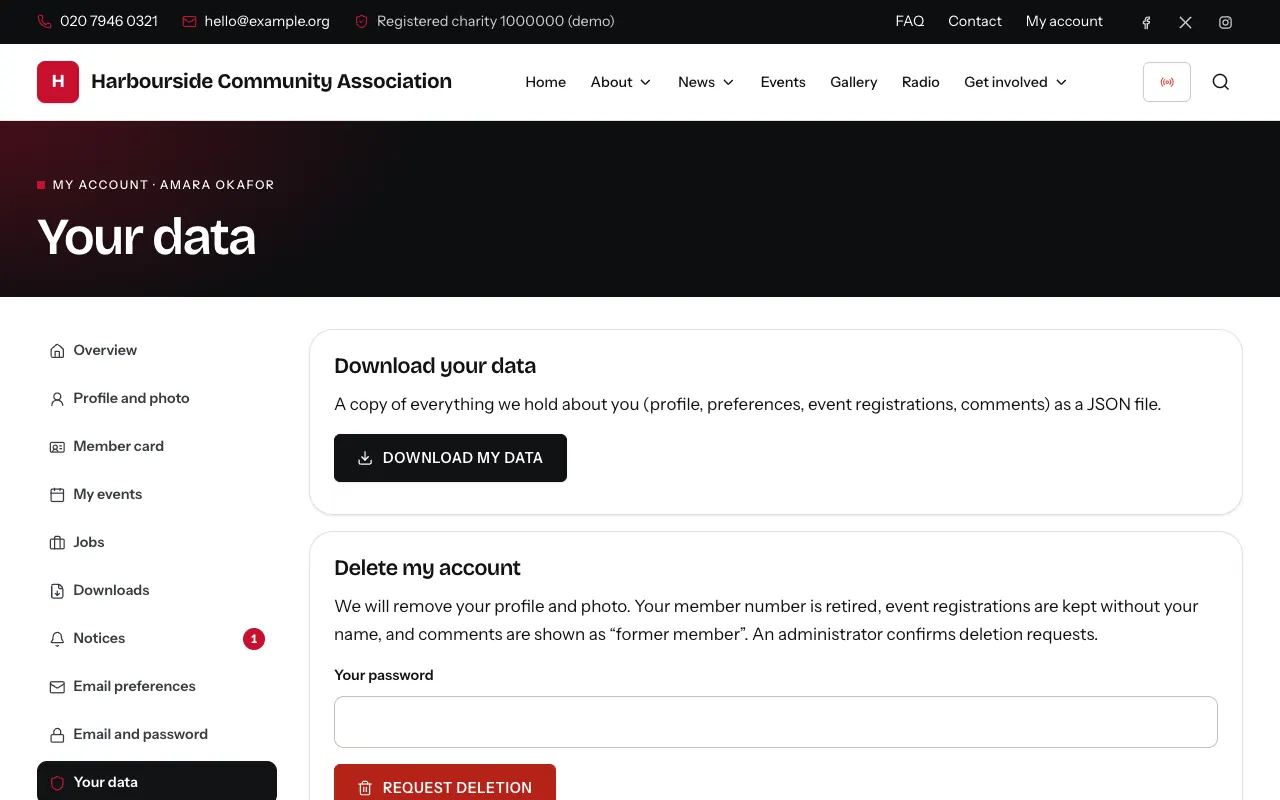
Your data:
- Download my data: a file with everything the organisation holds about you (profile, preferences, event registrations, comments).
- Delete my account: enter your password and click Request deletion. An administrator confirms it. Your profile and photo are removed, your member number is retired, event registrations are kept without your name, and your comments show as "former member".
When an administrator looks at your account
To help with a question ("I can't find my card"), an administrator can view the site as you see it, for up to 30 minutes. They cannot see or change your password or email address, delete your account, download your data or change your email choices, and they cannot like, comment or post as you. Everything they do is recorded. You normally get an email saying an administrator viewed your account; if you did not expect it, contact the organisation.
Help
This guide is on your organisation's website at /help (the Help link
in the footer and in My account). For anything else, use the
Contact page of your organisation's site, or reply to any email you
received from it.